Dynamic Blocks
Dynamic Blocks let you place named hook points in your Twig templates and fill them with CMS content that is resolved by context (article, manufacturer, category, or global) and priority. Blocks are registered in the module settings and rendered wherever their hook appears in the active theme.
A block has two independent parts:
a hook in a template —
{{ veblock('block_id') }}— that marks where content may appear;one or more content assignments that decide what appears there for a given object, resolved at render time.
Resolution priority
For a given hook and the current request context, the resolver scores every matching assignment and renders the single highest-priority one. Priorities (highest first):
specific article (this article) — 600
specific manufacturer (this manufacturer) — 500
specific category (active category,
getActiveCategory()) — 400any article (article scope, empty object) — 300
any manufacturer (manufacturer scope, empty object) — 200
any category (category scope, empty object) — 100
global (no object) — 0
A specific object always beats a broader scope, and article beats manufacturer
beats category. The “any …” tiers are wildcard assignments — the same
object_type with an empty object_id (there is no literal ALL_<type>
value in the data). A global assignment acts as the final fallback. If nothing
matches — not even a global assignment — the hook renders nothing; no error is
raised.
Enabling the feature
Dynamic Blocks are controlled by the dynamic_blocks module settings group:
blEnableVisualEditorBlocks(bool) — global on/off switch for the feature.aDynamicBlocks(aarr) — the registry of available block IDs mapped to their display labels. The module ships with four default blocks:before_header,after_header,before_footerandafter_footer. Custom block IDs (for examplesale_banner) are added here.
This replaces the former theme.php $aDynamicBlocks array; block
registration is now data in the module configuration, not theme code. On OXID
eShop 7 the settings are stored in
var/configuration/shops/<id>/modules/ddoevisualcms.yaml (moduleSettings),
not in oxconfig.
In the admin (Extensions → Modules → Visual CMS → Settings), the Dynamic blocks
group holds the enable checkbox — labelled to note that veblock tags must be
present in the theme — and aDynamicBlocks as a textarea, one id => Label
per line.

Placing a hook in a theme
Add the hook where the block should appear. The veblock Twig function is
provided by the VeblockExtension Twig extension (OxidEsales\VisualCmsModule\Blocks\Twig\Extension\VeblockExtension — the public API is the veblock() function, not the class):
{{ veblock('sale_banner') }}
Warning
Do not patch the shipped apex templates directly — changes to shipped code are lost on update. Override through your own module or theme instead (see below).
Place the hook through one of:
a module template extension — a Twig file under
views/twig/extensions/themes/…in your own module (the same mechanism Visual CMS uses for its own hooks, see Theme Extensions);a child theme that extends
apexand overrides only the target block;a fully custom theme.
All three use the same {% extends %} / {% block %} override. Example: a
banner above the product grid on the category listing (as a template extension or
in a child/custom theme):
{% extends '@apex/page/list/list.html.twig' %}
{% block page_list_listbody %}
    {{ veblock('sale_banner') }}
    {{ parent() }}
{% endblock %}
Common insertion points (apex): page_list_listbody (above the product
grid), the empty details_productmain_content block (end of the product
detail page), and header_main (global header).
Note
The module ships the hook points for the four built-in blocks
(before_header, after_header, before_footer, after_footer) as
Twig extensions for the apex theme only. Under a custom or child theme
(sCustomTheme) these module extensions are not loaded, so the built-in
header/footer hooks do not render — place the required veblock hooks in
your own theme templates (as shown above).
Assigning content to a block
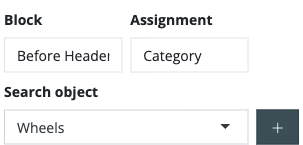
Content is created as a normal CMS content item and bound to a block on the Blöcke (Blocks) tab of the content editor. The tab has three fields:
Block — the block to fill, chosen from the registered blocks (for example
before_headeror the customsale_banner);Zuordnung (scope) — Alle (global), Artikel (article), Kategorie (category) or Hersteller (manufacturer);
Objekt suchen — the specific object to bind to (omitted for
Alle).
Assignments are stored in the ddoevisualcms_block_relations table
(OXID, content_id, block_id, object_type, object_id,
shop_id). This replaces the legacy oxcontents columns DDISBLOCK /
DDBLOCK / DDOBJECTTYPE / DDOBJECTID.
Time and device control
Blocks combine three levers: context (the assignment scope above), time, and device. Time is set on the rows/widgets inside the content, device visibility on individual widgets — not on the block hook:
Time — row/widget activity (
Grid/Activity, date and time, ranges incl. exclusion and and/or groups). Theveblock()render path honours this, so the same hook can switch content by time window without any template or block change.Device — per-device visibility set per widget (not whole rows) in the widget’s design settings, across six breakpoints (Small Mobile, Mobile, Tablet, Laptop, Desktop, Large Desktop), implemented via Bootstrap hide classes (
d-none d-{bp}-block); the default classes are configurable in the module’s layout settings.
Note
The block hook itself checks only OXACTIVE; it does not evaluate the
content’s own date window (DDACTIVEFROM / DDACTIVEUNTIL). Time-based
visibility is therefore driven by row/widget activity, which is more
granular (date and time) than the content-level window (date only).
Rendering behaviour and caveats
The render path runs veblock() → renderFragment() → vetree() →
GridRendererFacade → GridItemArrayRenderer → GridItemRenderer. These
renderers are the decoration points listed in Update; their interfaces
live under OxidEsales\VisualCmsModule\Grid\Rendering\ —
…\Facade\GridRendererFacadeInterface and, in …\Service\,
GridItemRendererInterface / GridItemArrayRendererInterface.
GridItemRendererDecorator is the module-internal Activity decorator
(OxidEsales\VisualCmsModule\Grid\Activity\Decorator\). The
per-widget activity decorator (GridItemRendererDecorator) still runs inside
the block, so row/widget time and device control keep working within block
content; only the content’s own oxcontents date window
(DDACTIVEFROM / DDACTIVEUNTIL) is ignored (see Time and device control
above).
When the feature is disabled (blEnableVisualEditorBlocks off), veblock()
returns an empty string.
veblock() renders the assigned content through renderFragment()
without a page ViewData context (Twig globals still apply). The block wrapper
therefore hands an empty triggerContext to context-sensitive shortcodes
(for example, article-dependent ones) — vetree itself is context-aware, and
shortcodes re-inject their own option values. This is irrelevant for fixed-motif
content (banners, brand cards) but matters if a block embeds shortcodes that
expect the surrounding page context.
Data model and migration
12.0 changes the internal data structure:
block assignments moved from
oxcontentscolumns (DDISBLOCK/DDBLOCK/DDOBJECTTYPE/DDOBJECTID) to theddoevisualcms_block_relationstable (columnsOXID,content_id,block_id,object_type,object_id,shop_id);block registration moved from
theme.php($aDynamicBlocks) to thedynamic_blocksmodule settings (blEnableVisualEditorBlocksand theaDynamicBlockslist), stored invar/configuration/shops/<id>/modules/ddoevisualcms.yaml;the former theme extension is gone.
The schema change is applied automatically by oe-console oe:database:migrate
(Doctrine migrations) — no manual command and no user action are required.
This is not a user migration workflow. Prior to 12.0 the dynamic-block
feature had no frontend render path, so there is no functional legacy usage to
carry over. Treat Dynamic Blocks in 12.0 as a new capability.
Example: sale banner
This example uses a custom sale_banner block. Its hook,
{{ veblock('sale_banner') }}, has to be provided by the active theme (see the
placement options above). The following walks the example through from assignment
to storefront.
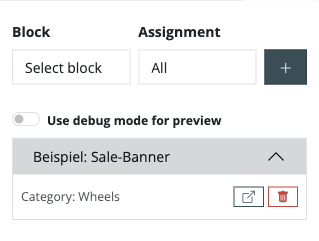
In the Blocks tab, the example content is assigned to the sale_banner block
(shown as Beispiel: Sale-Banner) for the category Wheels:
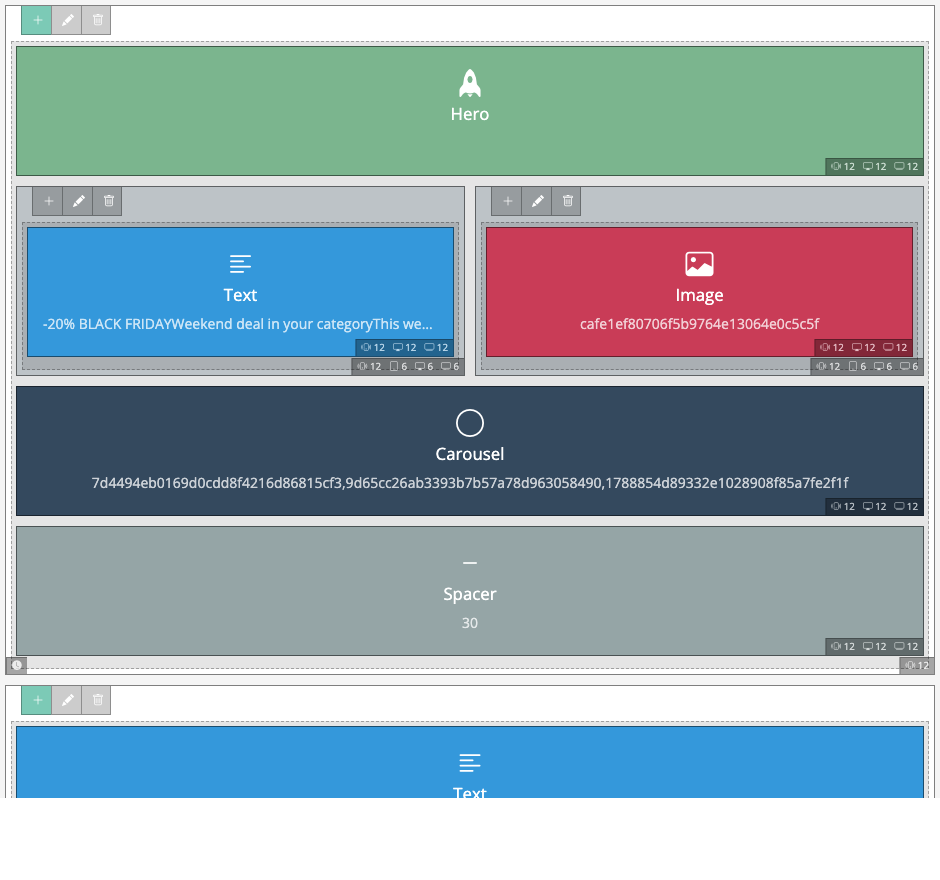
In the Visual CMS editor the content is built from several widgets — hero, a text/image column pair, carousel and spacer:
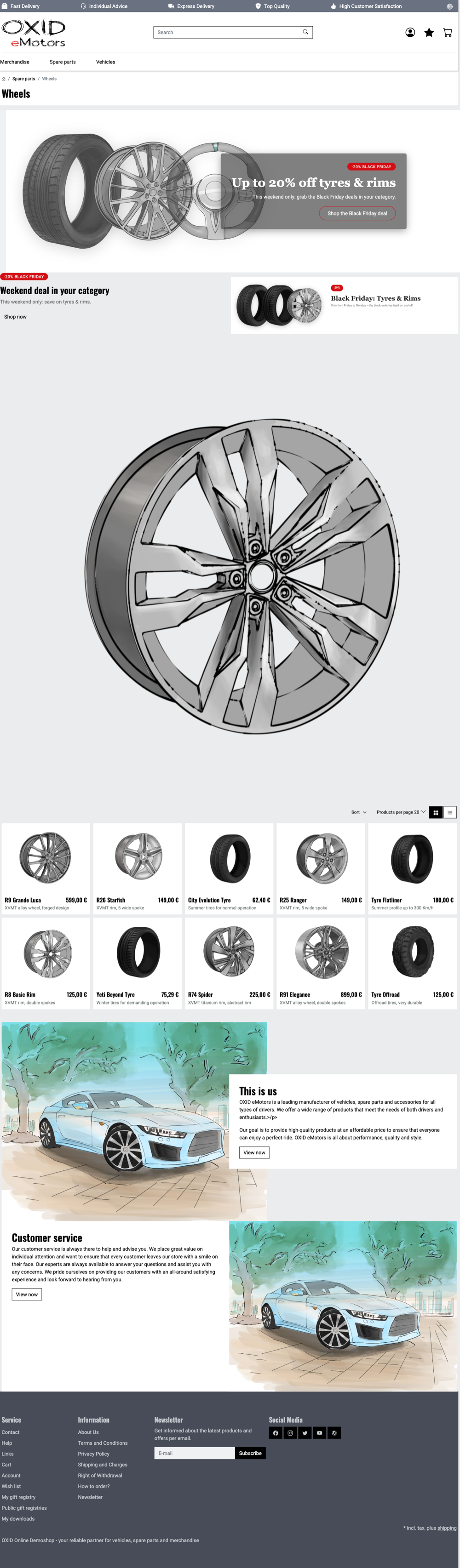
On the storefront the block renders on the Wheels category page as a promo teaser:
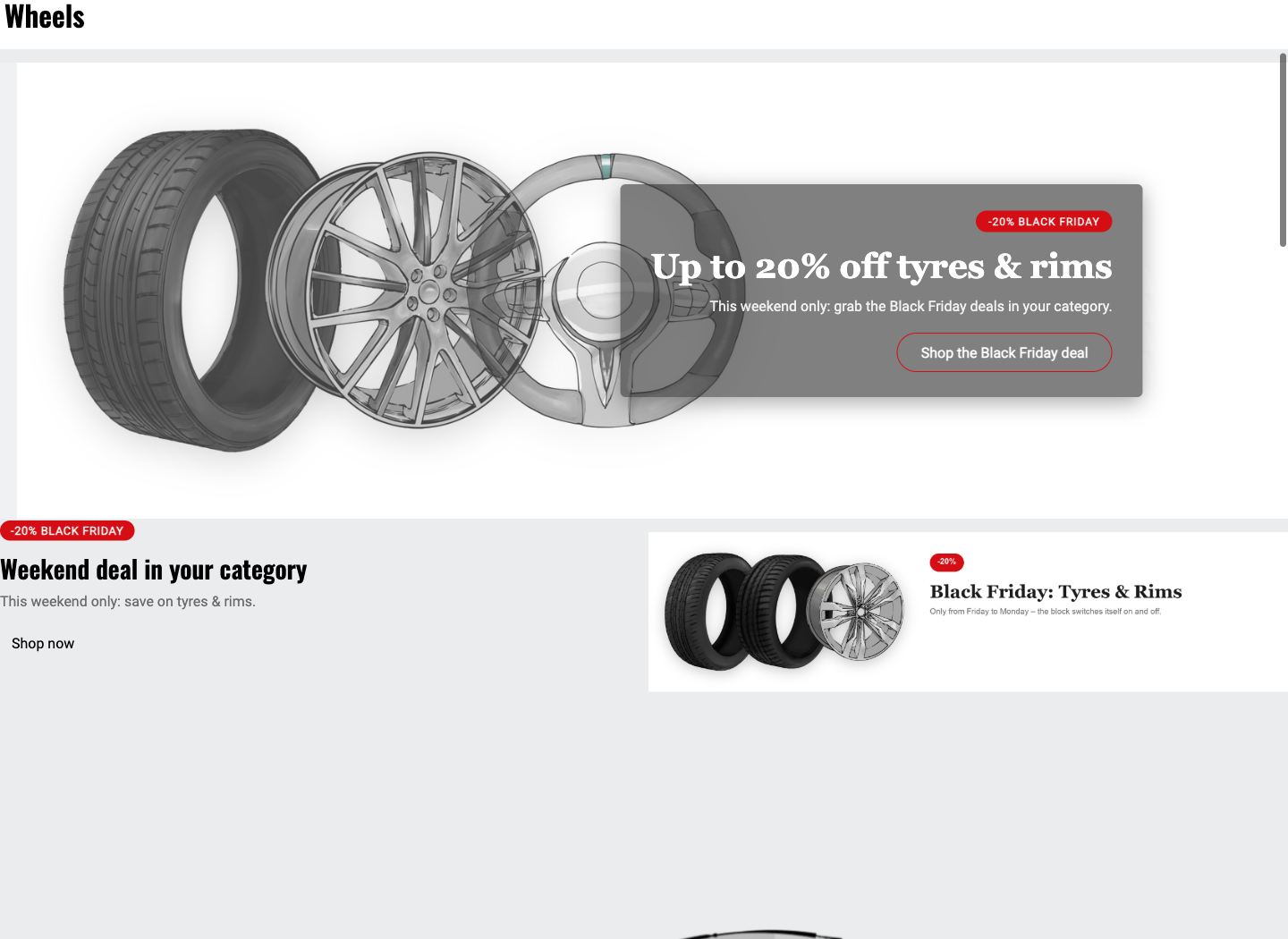
… and in the full page context: