Clearing the cache
As a template developer or administrator, verify that your changes are correctly displayed in the OXID eShop.
Changes to templates, configurations, or modules are often only properly applied in the shop after clearing the cache. Therefore, clearing the cache is essential.
The OXID Admin Tools module provides two complementary access options:
Manually: Via a button in the admin backend – simple and without command line
Via the OXAPI: Remote access using a GraphQL-based API
Delete only what is necessary for the current task to avoid impacting other systems.
Note that the shop may respond more slowly with empty caches until they are refilled.
Cache Area |
Action |
Use Case (when to clear?) |
|---|---|---|
Template Cache |
Removes compiled Twig template files. |
After changes to |
Internal Cache |
Clears the internal caching mechanism of OXID eShop. |
After changes to configurations or language files. |
Container Cache |
Clears the cache of the dependency injection container (based on Symfony). |
After changes to the DI setup, e.g., new services or events. |
Module Caches |
Clears caches related to installed modules. |
After modifying a module (activation/deactivation automatically clears the module cache). |
Template Chain Cache |
Clears the cache for template extension chains (new in OXID eShop 7.5). Speeds up resolution of templates that are overridden by multiple modules. |
After changes to module template overrides, especially in shops with many active modules. |
Entire Cache |
Performs a full cache reset (combines all caches listed above). |
In case of severe errors or after major updates. |
Clear Cache Manually
Manually clear individual caches or all caches of the OXID eShop.
Procedure
Choose .
Decide whether to clear the entire cache or only specific areas (Fig.: Clearing the cache, item 1).
Choose the Clear button.
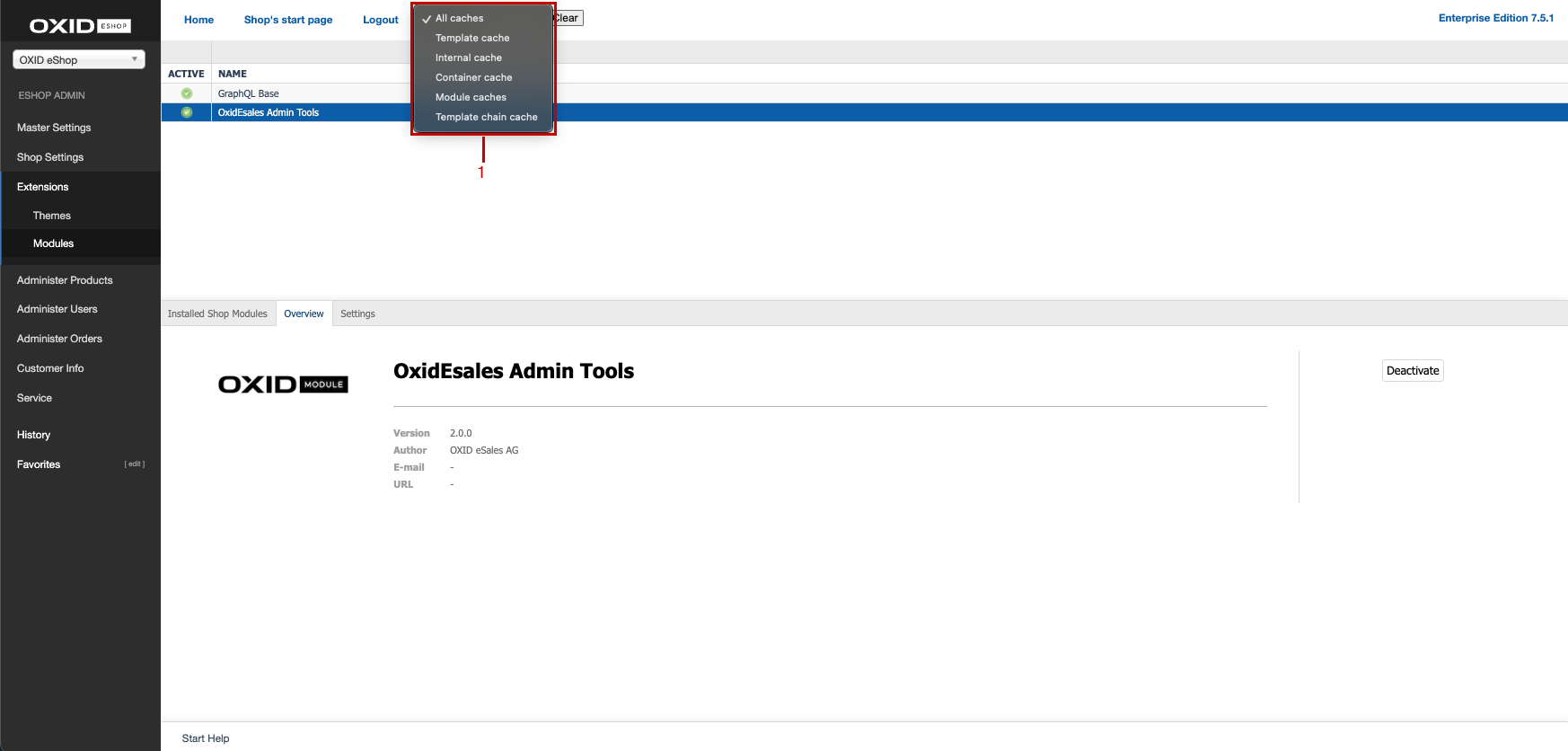
Fig.: Clearing the cache
Result
A message appears indicating that cache clearing has been triggered via the shop logic (Fig.: Clearing the cache: Result, item 1).
Note
The system does not verify whether the cache was actually cleared.
If the message “Cache clear failure” appears, try triggering the cache clearing again. If the issue persists, investigate the cause. If a module or other component is responsible, report the issue to OXID Support or Product Marketing. Suggestions for improvement are welcome.
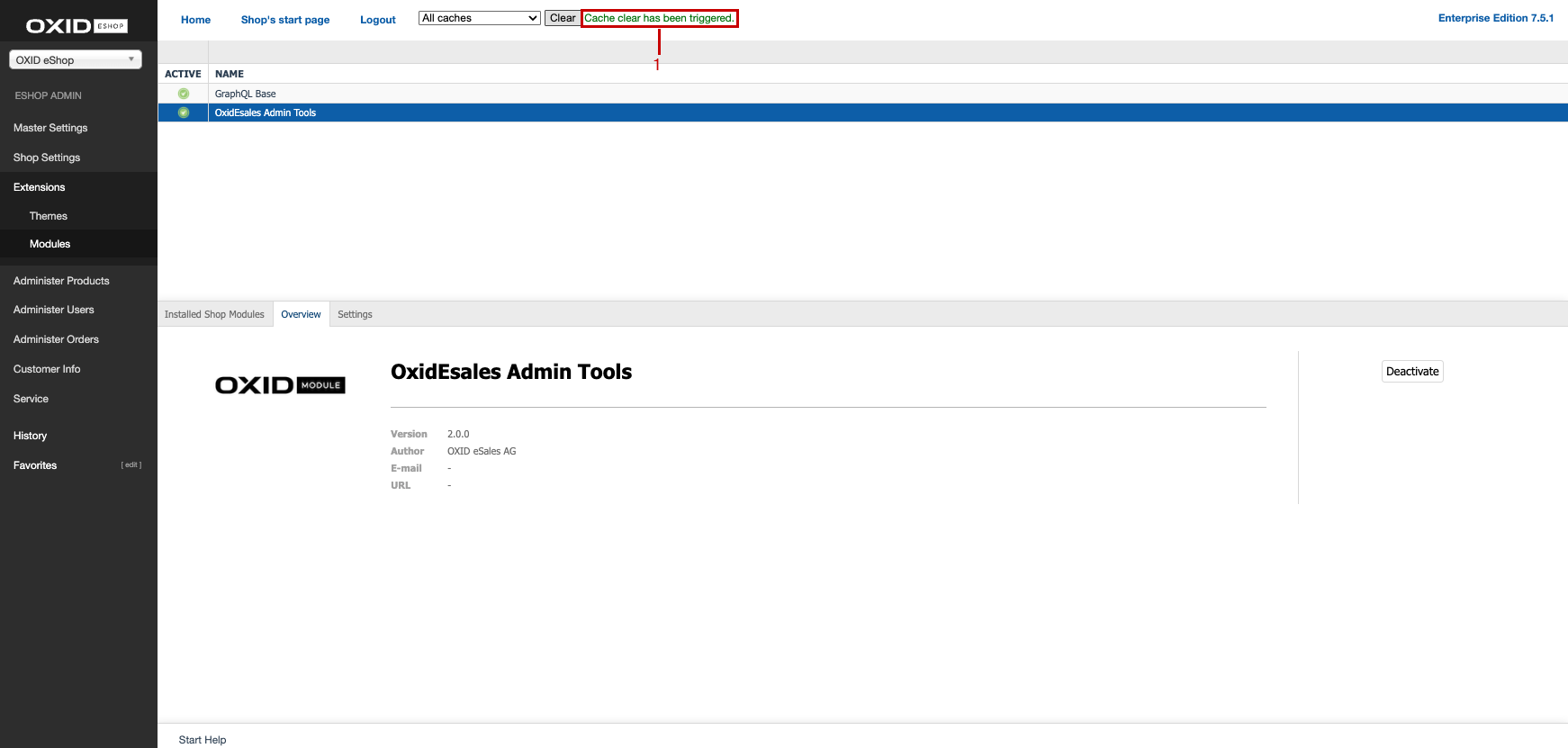
Fig.: Clearing the cache: Result
Clearing the cache via OXAPI
Automatically clear individual caches or all caches of the OXID eShop using the OXAPI (GraphQL API).
Prerequisites
To clear caches via the GraphQL API, the user is authenticated and has the necessary permissions:
The Authorization header with bearer token must include a valid OXAPI JWT token with sufficient rights.
The user must be a member of the user group
gqladmintoolscache.
Procedure
Ensure you have a compatible version of oxid-esales/graphql-base installed.
For example, install version 13.x using the following commands:
composer require oxid-esales/graphql-base ^13.0.0
./vendor/bin/oe-eshop-doctrine_migration migrations:migrate oe_graphql_base
./vendor/bin/oe-console oe:module:activate oe_graphql_base
Use the following GraphQL mutations:
Mutation
Function
clearTemplateCacheClears the template-related cache.
clearTemplateChainCacheClears the template chain cache (new in OXID eShop 7.5).
clearInternalCacheClears the internal system cache.
clearContainerCacheClears the DI container cache (Symfony).
clearModuleCachesClears the caches of installed modules.
clearGraphQLSchemaCacheClears the GraphQL schema cache (only available when the
oe_graphql_basemodule is active).clearCachesClears all of the above caches simultaneously.
Note
Up to version 1.x, the cache operations were GraphQL queries. From version 2.0 onward, they are GraphQL mutations. Existing integrations must be adjusted accordingly.
Example
The following GraphQL mutation clears all caches:
mutation {
   clearCaches
}