CAPTCHA Protection Against Bot Attacks
The CAPTCHA mechanism in OXID eShop protects form areas from automated bot attacks.
This feature is available for key forms and includes two different types of CAPTCHA.
Background
Automated requests can lead to spam, security vulnerabilities, or increased server load.
The CAPTCHA mechanisms prevent such automated inputs either through active user interaction or through invisible validation methods (e.g., honeypot).
Available CAPTCHA Types
Image CAPTCHA
Users must correctly enter the text displayed in an image.
To assist users, a Reload button and an audio playback option for accessibility are available (Fig.: Image CAPTCHA with audio playback and reload).
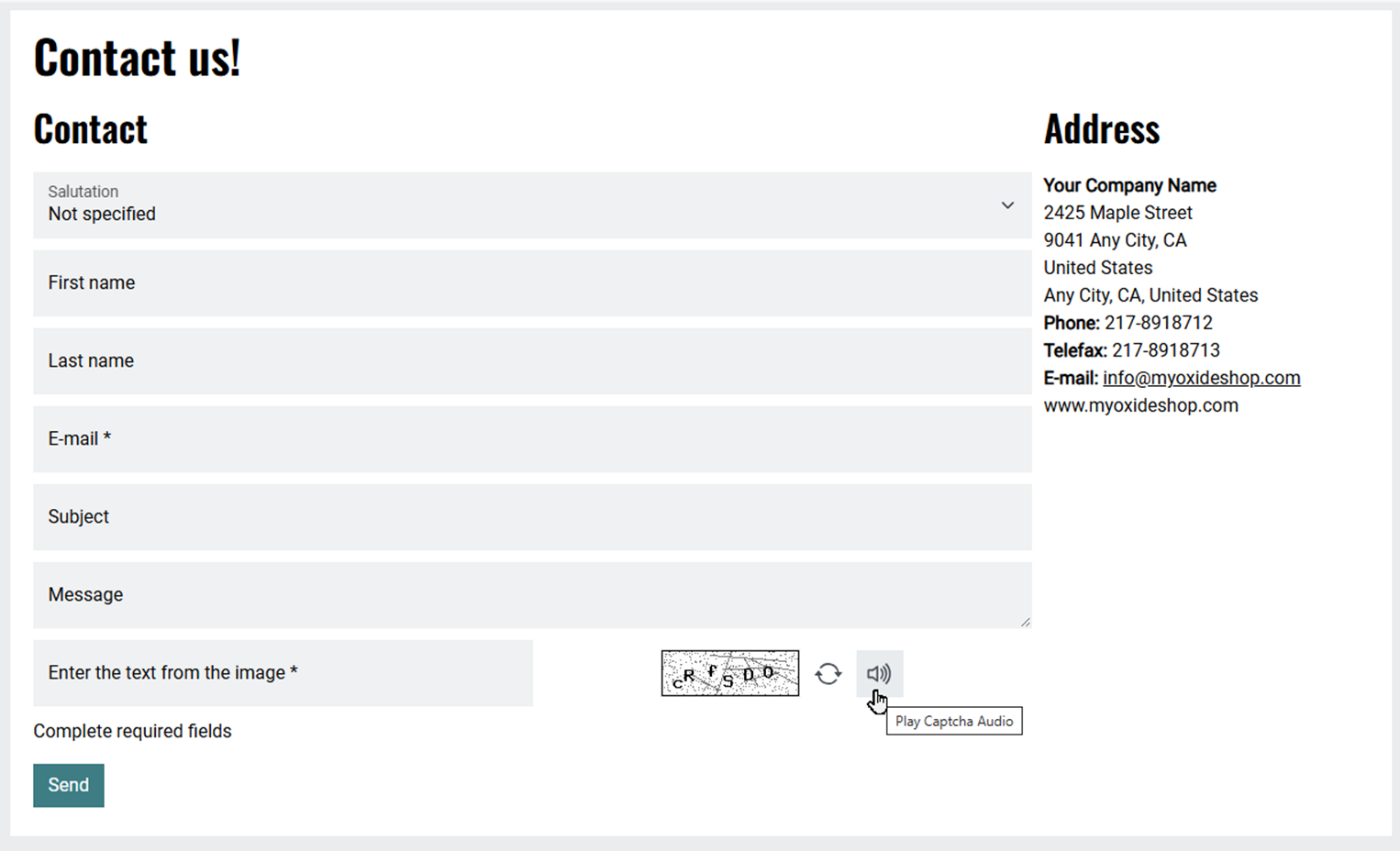
Fig.: Image CAPTCHA with audio playback and reload
Honeypot CAPTCHA
An invisible field identifies automated bots without affecting the user experience (Fig.: Testing the Honeypot CAPTCHA, item 1).
This CAPTCHA is not visible to human users.
Applicable Forms
The CAPTCHA check is integrated into the following forms:
Registration
Login
Newsletter subscription and unsubscription
Contact form
Configuring CAPTCHA Verification
Enable CAPTCHA verification to protect your forms from automated submissions.
You have the following options:
Recommended: To prevent spam or bot abuse — especially if you’re currently experiencing or anticipating such activity, enable the image-based CAPTCHA verification (Fig.: Example: Image-based CAPTCHA verification in the contact form). This method is particularly robust and suitable for security-critical forms such as registration or newsletter sign-up.
If you want to detect bots discreetly without affecting the user experience with a visible CAPTCHA, enable the Honeypot CAPTCHA feature.
In this case, an invisible input field is added to the form (Fig.: Testing the Honeypot CAPTCHA, item 1). Automated scripts that attempt to fill out all fields will typically enter data into this field as well. The submission is then blocked.
To improve defense-in-depth and reduce the chance of bot bypass with two layers of protection, enable the Honeypot CAPTCHA in addition to the image-based CAPTCHA verification.
The honeypot can silently flag suspicious behavior even if the image CAPTCHA is solved correctly.
Procedure
In the menu, go to and select the module.
Click the Settings tab.
Go to CAPTCHA settings.
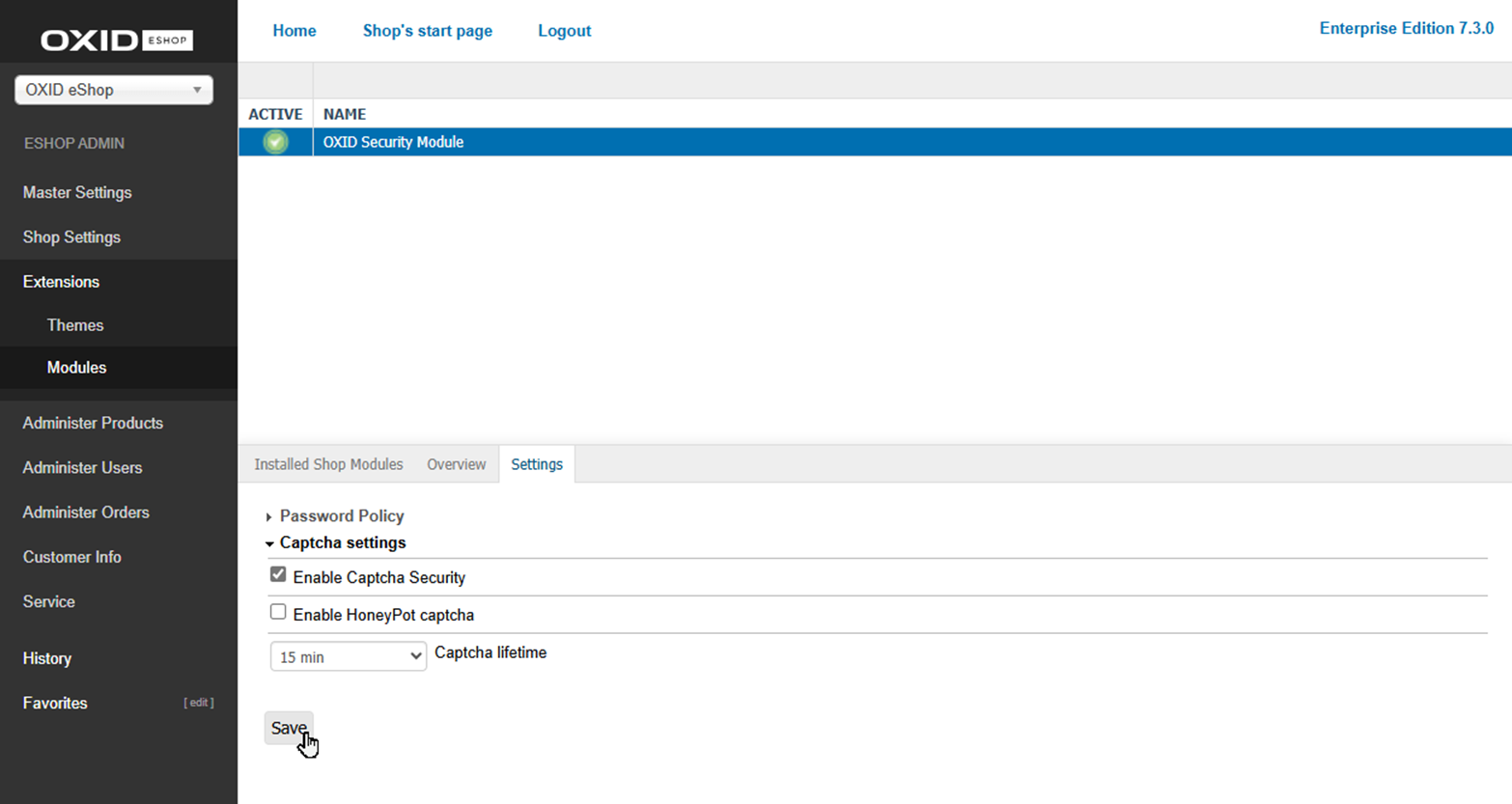
Fig.: Configuring CAPTCHA verification
You have the following options:
Enable image-based CAPTCHA verification:
Choose the Enable CAPTCHA Security checkbox.
Optionally, define the CAPTCHA lifetime, i.e., how long the CAPTCHA image remains valid.
Default value: 15 minutes.
If the CAPTCHA expires, the form submission is rejected.
Recommendation: Choose a value depending on the form type, expected fill-out time, and required security level:
Short lifetime (5 min): Suitable for highly security-sensitive forms (e.g., registration) to make replay attacks more difficult.
This may cause issues for users who need more time (e.g., due to accessibility requirements or age-related limitations).
Longer lifetime (30 min): Better for forms with extended input time (e.g., contact forms with free-text fields).
Reduces support requests due to fewer submission errors.
Enable invisible bot protection with no user interaction required:
Choose the Enable Honeypot CAPTCHA checkbox.
Carefully test the Honeypot CAPTCHA feature if your OXID eShop must strictly adhere to accessibility guidelines.
Background: While a honeypot is generally unproblematic, incorrect markup can prevent the invisible field from being hidden properly.
This can happen, for example, if CSS rules are incorrectly applied, potentially making the field visible or causing issues with screen readers.
Save your settings.
Result
The image-based CAPTCHA verification (Fig.: Example: Image-based CAPTCHA verification in the contact form) reliably blocks automated submissions in security-critical forms.
Bot-based submission attempts are rejected; the form remains accessible and operable for users with assistive needs.
Fig.: Example: Image-based CAPTCHA verification in the contact form
If Honeypot CAPTCHA is enabled, an invisible field is inserted.
In the contact form, for example, you find an invisible
lastname_confirmfield (Fig.: Testing the Honeypot CAPTCHA, item 1):<input type="text" name="lastname_confirm" class="d-none" value="" tabindex="-1" autocapitalize="off" spellcheck="false" autocorrect="off" autocomplete="off" />
To test the function, do the following:
Inspect the form’s HTML source and look for a hidden input field that should not be filled (
class="d-none").Fill the field in the browser by removing the
class="d-none"styling or by editing the input value directly in the HTML (value="Doe", for example).Submit the form and verify it’s rejected and gives an error.
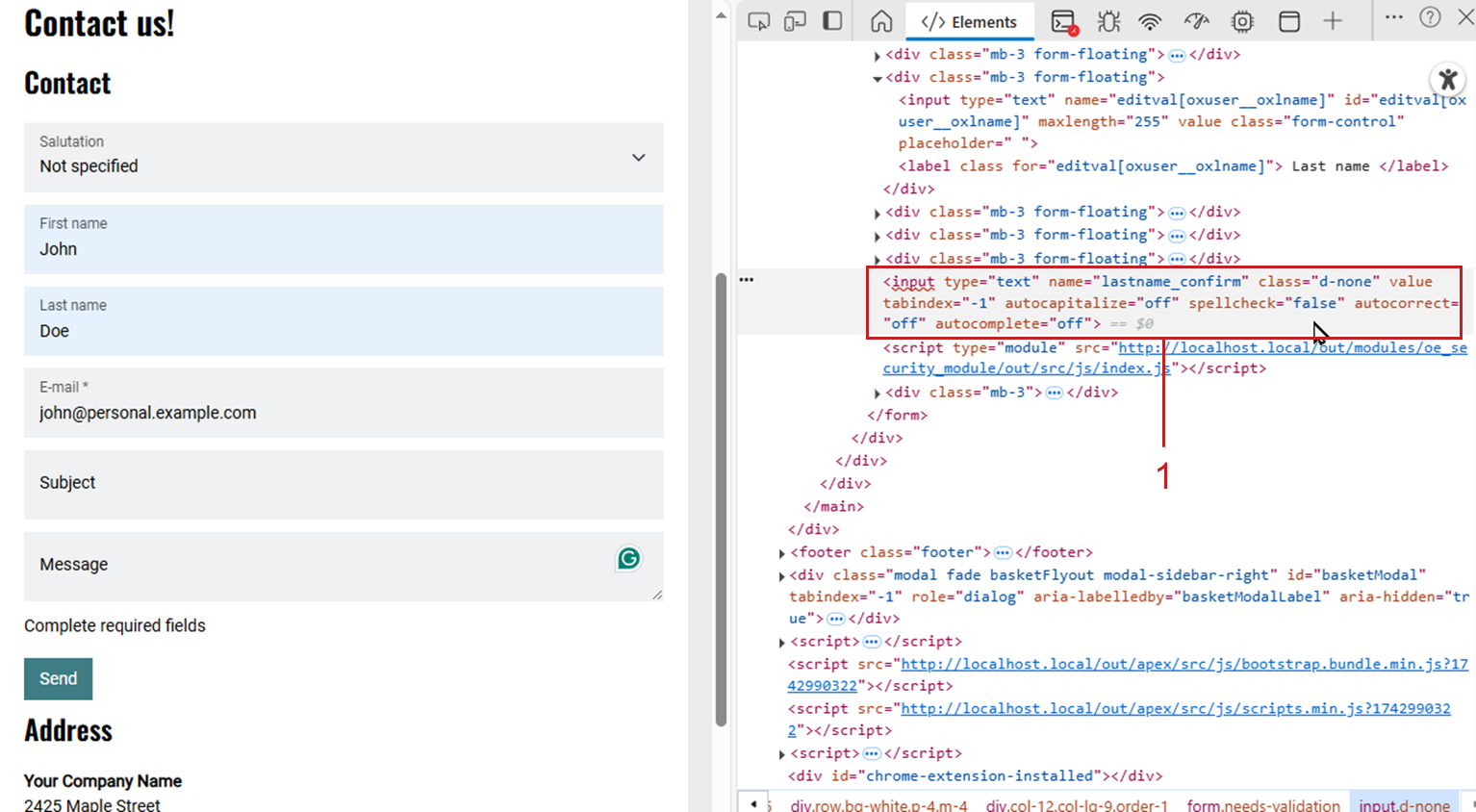
Fig.: Testing the Honeypot CAPTCHA