Two-Factor Authentication
Two-factor authentication (2FA) protects your customers’ storefront logins with an additional one-time code delivered by email.
Background
A stolen password alone is not enough to sign in to a customer account once 2FA is enabled. At login, the customer must enter a 6-digit code from the most recent email in addition to their password (Fig.: Storefront login with two-factor authentication).
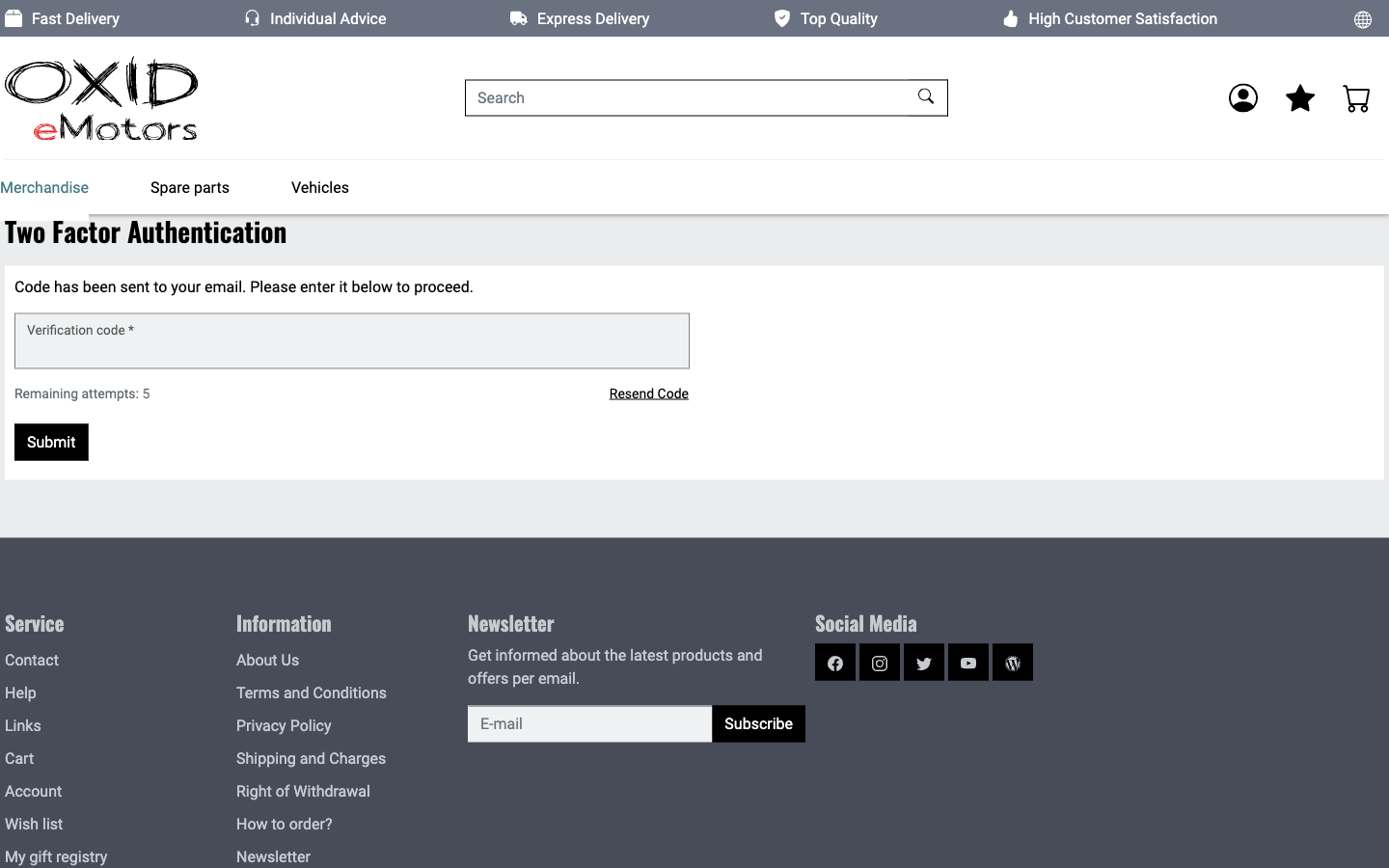
Fig.: Storefront login with two-factor authentication
How it works
After the customer enters their username and password successfully, the shop sends a 6-digit code to the customer’s email address. The customer enters this code on the OTP page to complete the login.
Protection mechanisms:
The code is valid for 5 minutes by default. The validity period is configurable via the OTP code lifetime (seconds) setting (Enable Two-Factor Authentication shop-wide).
Up to 5 attempts are allowed per code. After the fifth failed attempt the customer must restart the login.
There is a 60-second waiting period between two code dispatches.
Scope
The 2FA protection applies to storefront logins (customer accounts in the storefront) as well as to logins via OXAPI (headless). For connecting headless frontends, see Two-Factor Authentication via OXAPI.
Not covered:
Logins in the admin backend.
Default behavior
After installation or update of the module, 2FA is disabled by default — both shop-wide and for every individual customer. Existing customers face no extra login hurdles.
As the shop admin you only enable the feature shop-wide (Enable Two-Factor Authentication shop-wide). Once you do, the 2FA option becomes visible in the customer account, and each customer decides for themselves whether to use 2FA for their account (Activation by the customer).
A 2FA code is requested at the next login of a given customer only after that customer has activated 2FA in their own account.
Enable Two-Factor Authentication shop-wide
Prerequisites
You have the OXID Security Module installed and activated (see Installation).
Procedure
Under , choose the OXID Security Module.
Choose the Settings tab.
Go to Two Factor Authentication.
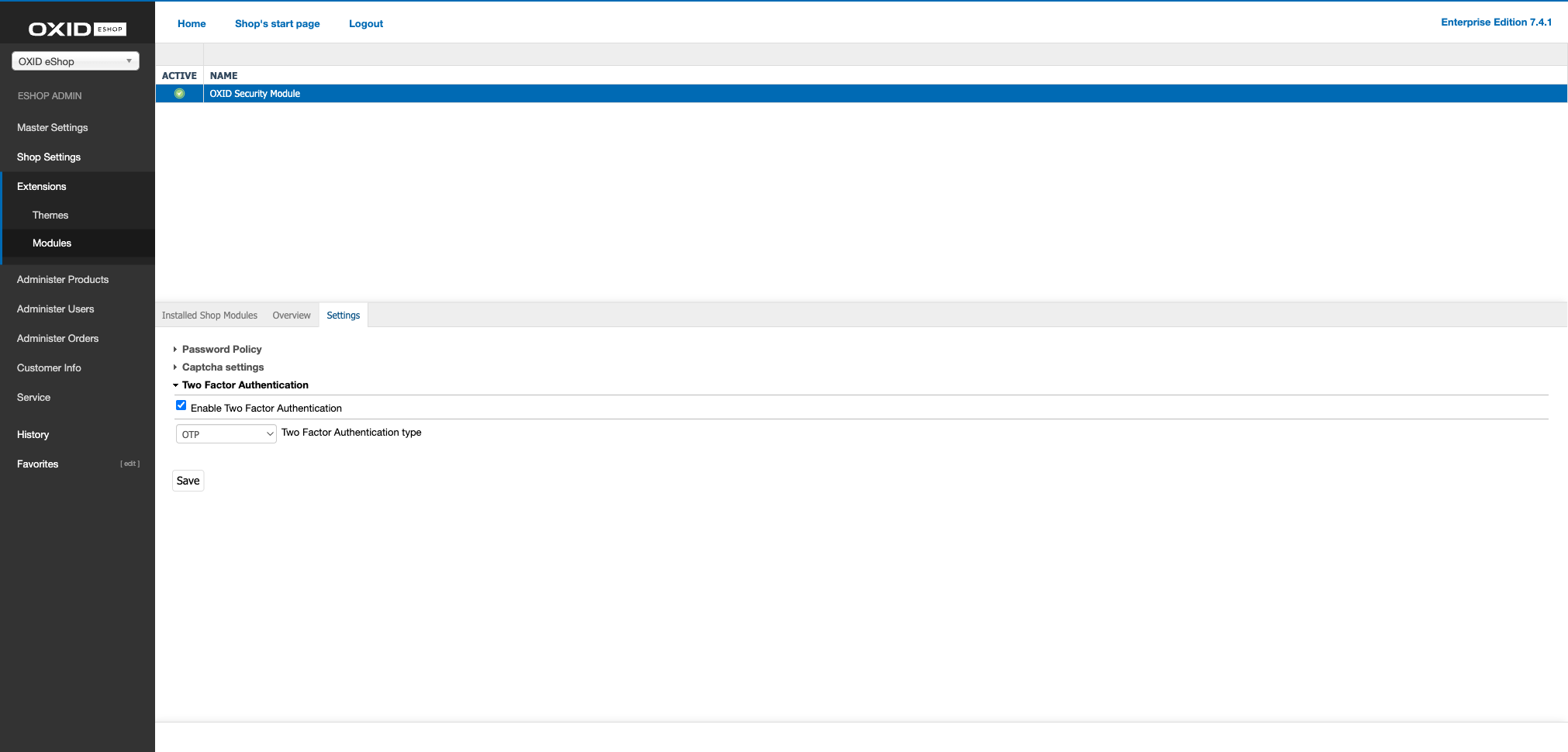
Fig.: Enable Two-Factor Authentication shop-wide
Choose the Enable Two Factor Authentication checkbox.
Optional: adjust the other 2FA settings:
Two Factor Authentication type: the method used to deliver the second factor. Currently only OTP (one-time password by email) is available. TOTP (authenticator app) is planned for a future release.
OTP code lifetime (seconds): how long an OTP code sent by email remains valid. Applies to both the storefront and the OXAPI flow. Default: 300 (5 minutes).
API 2FA challenge lifetime (seconds): relevant to OXAPI only. Defines how long a challenge token can be exchanged for a full access token. The value is automatically capped at the OTP code lifetime — a challenge token is never usable longer than the OTP code itself. Default: 300 (5 minutes). See also Two-Factor Authentication via OXAPI.
Save your settings.
Result
2FA is enabled shop-wide. Your customers can now switch on the feature themselves in their customer account.
Activation by the customer
Once 2FA is enabled shop-wide, every customer can switch 2FA on or off for their own account.
Procedure
The customer signs in to the storefront and opens their customer account.
In the Security section the customer chooses the Enable two-factor authentication option.
The customer saves the setting (Fig.: Customer account security with two-factor authentication enabled).
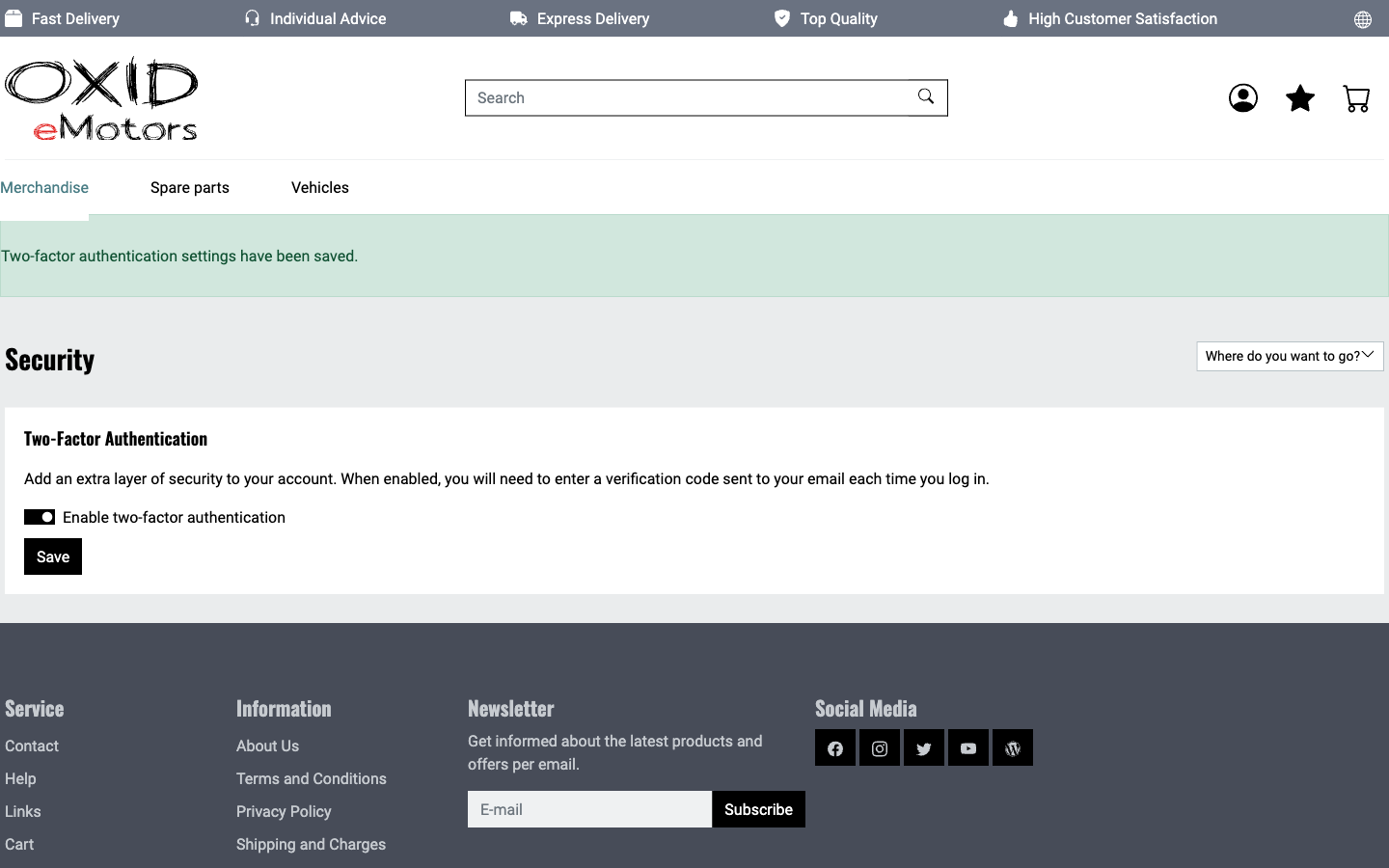
Fig.: Customer account security with two-factor authentication enabled
Result
At the next login of this customer, a 2FA code is requested by email in addition to the username and password.
After too many failed attempts
Up to 5 attempts are allowed per 2FA code. After the fifth failed attempt the OTP flow is locked: the input field for the verification code, the submit button, and the resend button are all hidden (Fig.: 2FA login locked after 5 failed attempts).
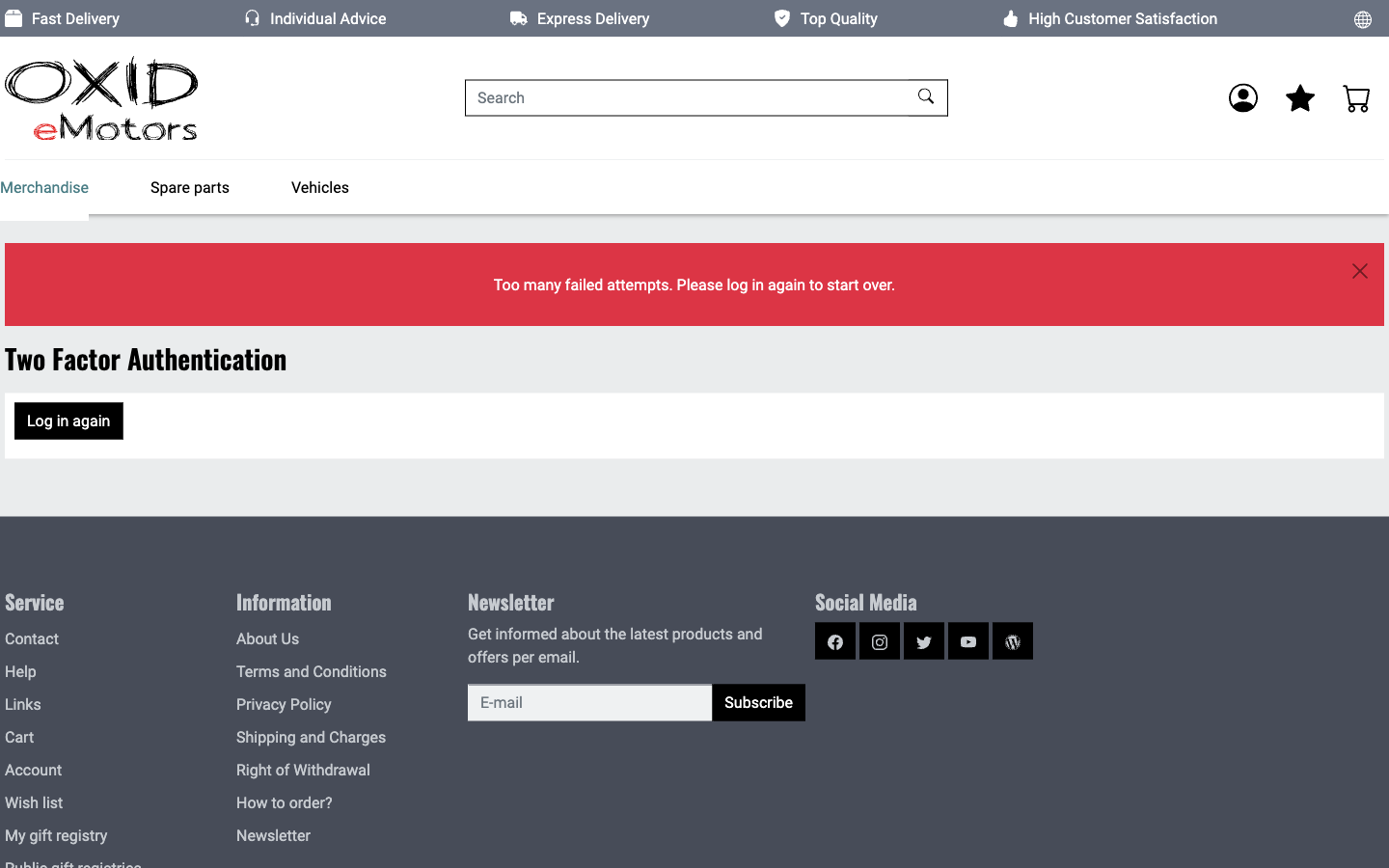
Fig.: 2FA login locked after 5 failed attempts
Instead, a Log in again button appears. Clicking it discards the locked OTP flow and sends the customer back to the login page. From there they can start a new login attempt with username and password, which triggers a fresh 2FA code to their email address.
Customizing the OTP email
The email carrying the 2FA code is generated from a CMS content block. This lets you adjust the subject and body of the email in the admin backend to match your corporate design, without touching the code.
Background
The CMS content has the identifier (OXLOADID) oesm2faotpemail and is located in the CMSFOLDER_EMAILS folder. Subject and body are maintained per language. When sending, the module embeds the text into both a styled HTML email and a plain-text variant.
Two placeholders are substituted on send:
{ otp }— the 6-digit one-time code.{ minutes }— the code’s validity period in minutes. The value is derived from the OTP code lifetime (seconds) setting (Enable Two-Factor Authentication shop-wide).
Keep both placeholders in the text. If the text does not contain the { otp } placeholder, the module sends the built-in default email instead (see below), so the customer receives the code in any case.
Procedure
In the admin backend, open the CMS content via the menu item.
Open the content with the identifier (
OXLOADID)oesm2faotpemail.Adjust the subject and body per language. Keep the
{ otp }and{ minutes }placeholders.Save the content.
Result
The 2FA code emails are sent with your customized subject and body.
Additional notes:
Fallback. If the CMS content is missing or inactive, the module sends a built-in translated plain-text email. This ensures the customer receives the code even when no CMS content is maintained.
Languages and subshops. The CMS content is created for shop 1 in German and English only during installation or update. Depending on your shop configuration (CE / PE / EE) and the active languages, you may need to add the content manually — for example for additional languages or for EE subshops other than shop 1.
Notes
Login problems if the email is lost. 2FA relies on the customer’s stored email address. If a customer no longer has access to their email, the “forgot password” function does not help either — both paths use the same email address.
Stay-logged-in with 2FA. When a customer enables 2FA, any existing “stay logged in” cookie is discarded. At the next visit the customer must sign in normally and then enter the 2FA code.