Operation
Orders with automatic capture
If you have configured the Capture Mode to Automatic (capture immediately) (see Configure additional basic settings), the amount is captured immediately when the customer completes the checkout.
The purchase process follows the standard OXID eShop order process. After the customer clicks Order now, the Stripe payment form appears (Fig.: Stripe payment form).
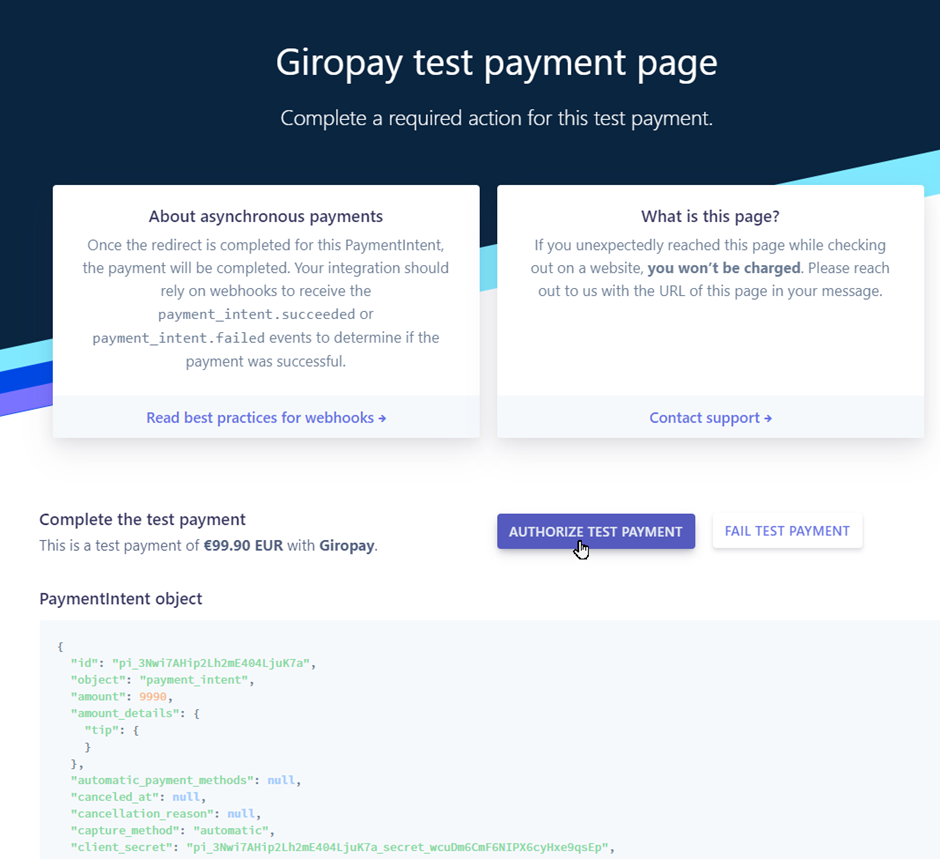
Fig.: Stripe payment form
Result
The payment is captured immediately. In the admin area under , the Stripe tab displays the payment details (Fig.: Payment details of an automatically captured order).
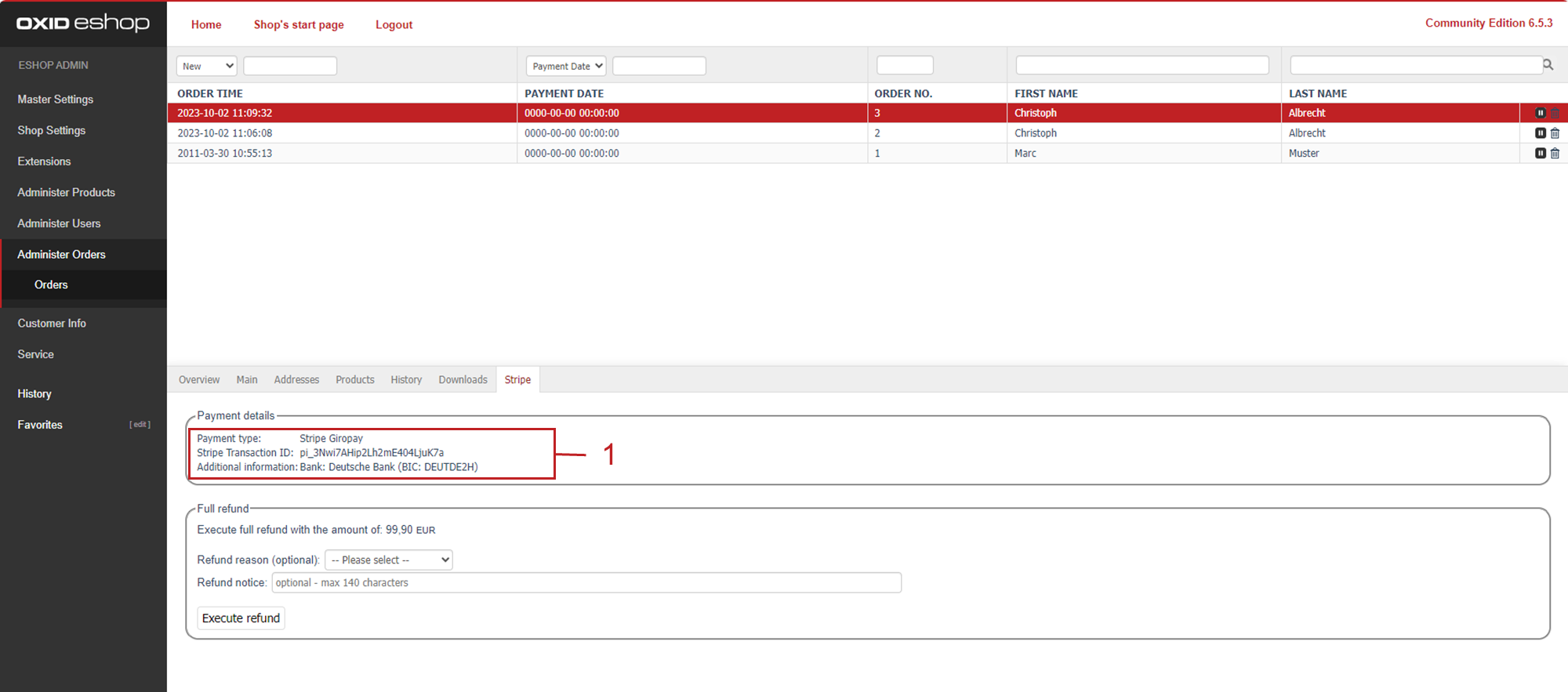
Fig.: Payment details of an automatically captured order
Orders with manual capture
If you have configured the Capture Mode to Manual (authorize only, capture later), the payment is initially only authorized. You must capture the amount manually afterwards.
Important
If you choose manual capture, you must capture the payment within 7 days. After this period, the authorization expires and the reserved funds are released.
The checkout process in the frontend is identical to the automatic mode. The customer goes through the normal checkout and enters their payment details in the Stripe payment form (Fig.: Stripe payment form).
The difference is visible in the admin area: The Stripe tab shows the notice Payment capture required and offers the button Capture Payment (Fig.: Stripe tab with capture form for manual capture).
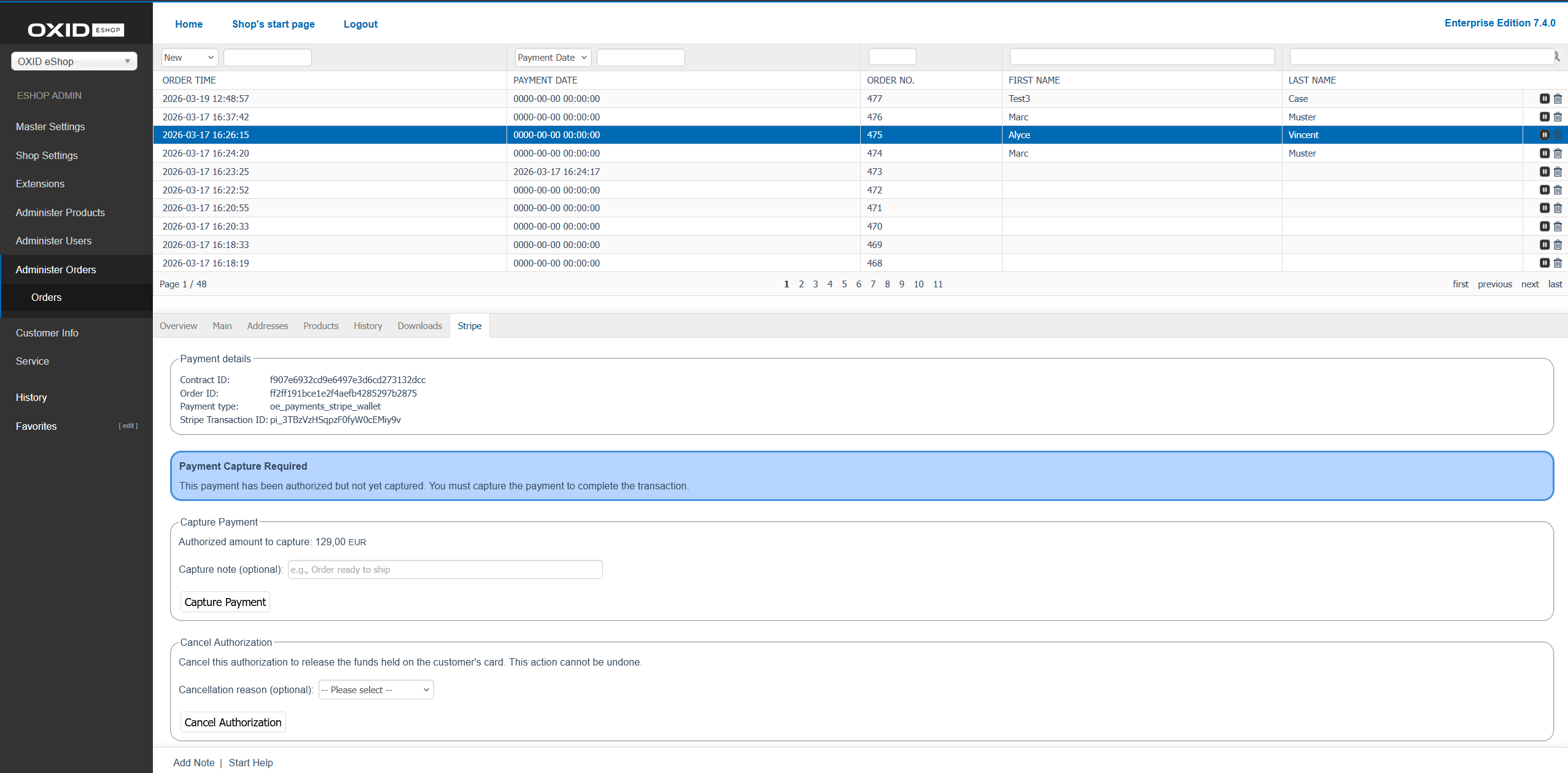
Fig.: Stripe tab with capture form for manual capture
Capture payment
Capture the authorized amount to complete the transaction.
Procedure
Go to and select the order.
Select the Stripe tab.
Optional: In the field Capture note (optional), enter a reason, e.g. “Order ready for shipment”.
Click the button Capture Payment.
Result
The payment is captured and the order is marked as paid.
Refunds
Refund payments fully or partially via the Stripe tab in the order administration.
Prerequisites
The order was paid with Stripe Payment.
The payment has been captured (in case of manual capture).
Full refund
Procedure
Go to and select the order.
Select the Stripe tab.
Optional: Under Refund reason (optional), select a reason.
Optional: Under Refund note, enter a description (max. 140 characters).
Click the button Process Refund.
Partial refund
If you have already refunded individual items, the system displays the remaining amount. Click Process Refund to refund the remaining amount.